


With the latest update (version 8.1.1) for Dynamics 365 for Finance & Operations, Microsoft released enhancements to the existing Ledger Settlements functionality. Ledger settlements allows you to match debit & credit transactions within the GL and mark them as settled, these settlements may also be reversed should they have been made in error. Ledger account settlements are useful when trying to reconcile clearing, prepaid, accrual and/or temporary accounts but may be used with any account in the GL.
To enable and use advanced ledger settlements, follow these steps:
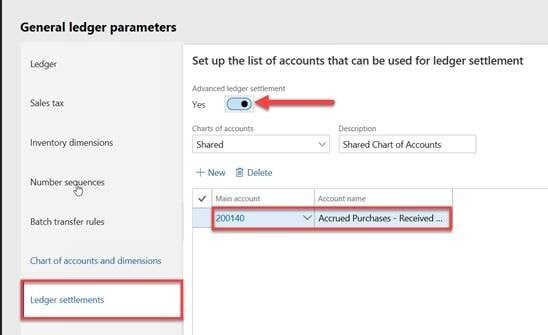
- Enable advanced ledger settlements
- Path: General Ledger < Ledger Setup < General Ledger Parameters
- Click on the Ledger Settlements tab and set the advanced ledger settlement option to yes
- Select the GL accounts where you would like to use the settlement feature, this list is used to filter the transactions for easier reconciliation
- Click save or close the GL parameters window
- Settle transactions using the new ledger settlements page
- Path: General Ledger > Periodic Task > Ledger Settlements
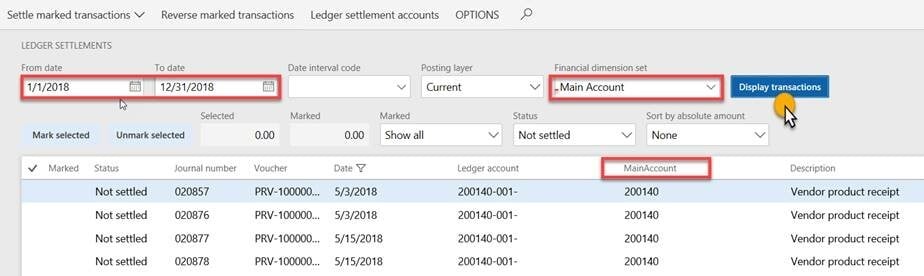
- Set the following filters
- From/To data range or interval code
- Financial dimension set
- Click on display transactions, this will filter the transactions based on the GL accounts you assigned in Step 1
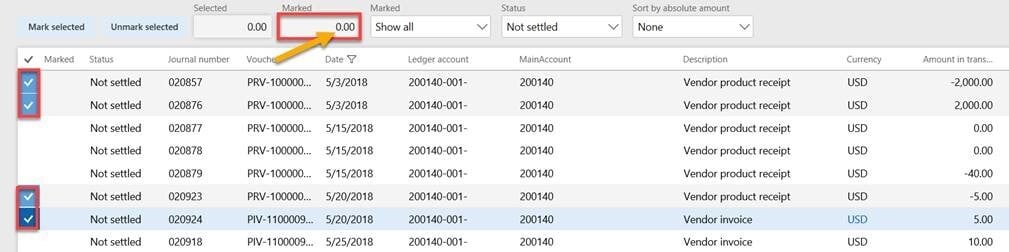
- Select the transactions you would like to settle, mark as many as you would like as long as your marked transaction net to zero
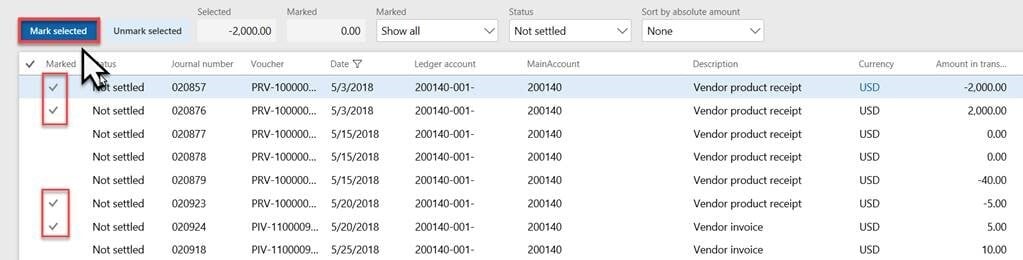
- Once completed marking the transactions you would like to settle, click Mark selected, this will now put a checkmark next to those transactions
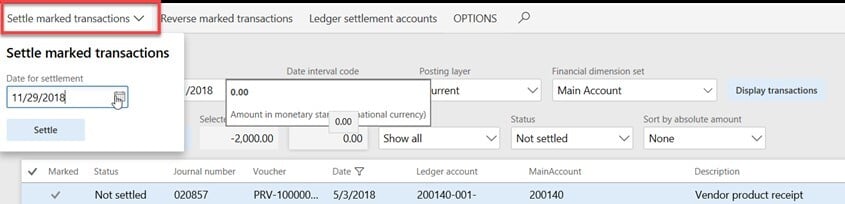
- Click on Settle marked transactions, select a date & click settle, this will update the status to Settled

- Reversing a settlement
- Follow steps 2a through 2c above
- In the status filter, select Settled
- Select settled transactions you would like to reverse & click Mark selected
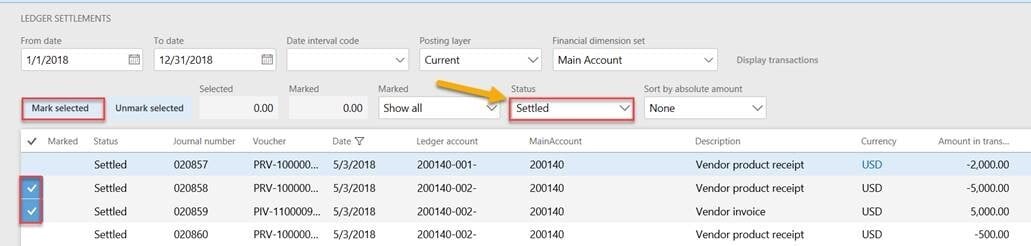
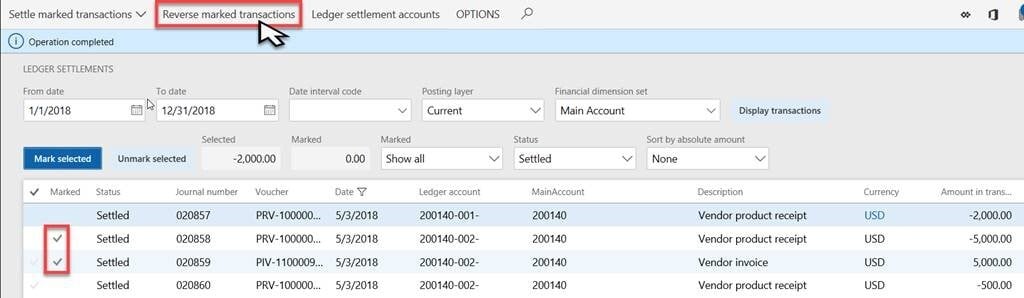
- Once marked, click on Reverse marked transactions and select yes.
The latest updates to ledger settlements in D365FO offer greater control and flexibility for managing financial transactions. If you have questions or need help implementing these enhancements in your environment, Western Computer is here to support your success.