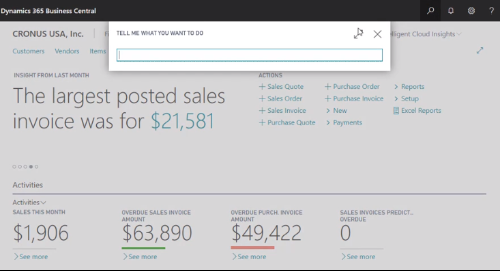




Did you know Microsoft Dynamics 365 Business Central supports the use of numerous keyboard shortcuts? The application already allows you to automate and optimize plenty of daily processes. Additionally, when you are working with data in the interface, there are lots of shortcuts to help you operate even more efficiently.
Here’s our list of basic shortcuts that are helpful to almost any Business Central user. For users who are adept at shortcuts in other Microsoft applications such as Excel, many of these will be familiar. Read through to the end for a link to more advanced combinations and a printable cheat sheet!
1. Copy a value
Ctrl + C
In Business Central, if the field is in focus but you haven’t selected any text within the field, Ctrl + C will copy the entire value. If you’ve selected text within the field, Ctrl + C will copy only the selected text.
2. Refresh data on the current page
F5
If someone else is working on the same page at the same time as you, just hit F5 to make sure the data on the page is up to date.
3. Open a drop-down list or look up a field value
Alt + Down Arrow
4. Close the current page or drop-down list
Esc
5. Display a tooltip for a field or a table column header
Alt + Up Arrow
If the field has validation errors, Alt+Up Arrow will show the validation error. You can close the tooltip with either Esc or Alt+Up Arrow.
6. Move focus to the next element
Tab
7. Move focus to the previous element
Shift + Tab
8. Open Business Central help for the current page
Ctrl + F1
9. Switch layout views
Ctrl + F12
This will switch you back and forth between wide and narrow layout view.
10. Sort selected column in list view
Alt + F7
Sort the selected column in ascending or descending order.
11. Add a new line in an editable list or tile
Alt + N
12. Select all rows in list view
Ctrl + Click
13. Create a new record
Alt + N
This will open a page to create a new record. Additional shortcuts related to creating new records are:
Alt + Shift + N: close a newly created page and open a new one to create a new record
Alt + F9: post a document and create a new one
14. Open your My Settings page
Alt + T
15. Copy from cell above
F8
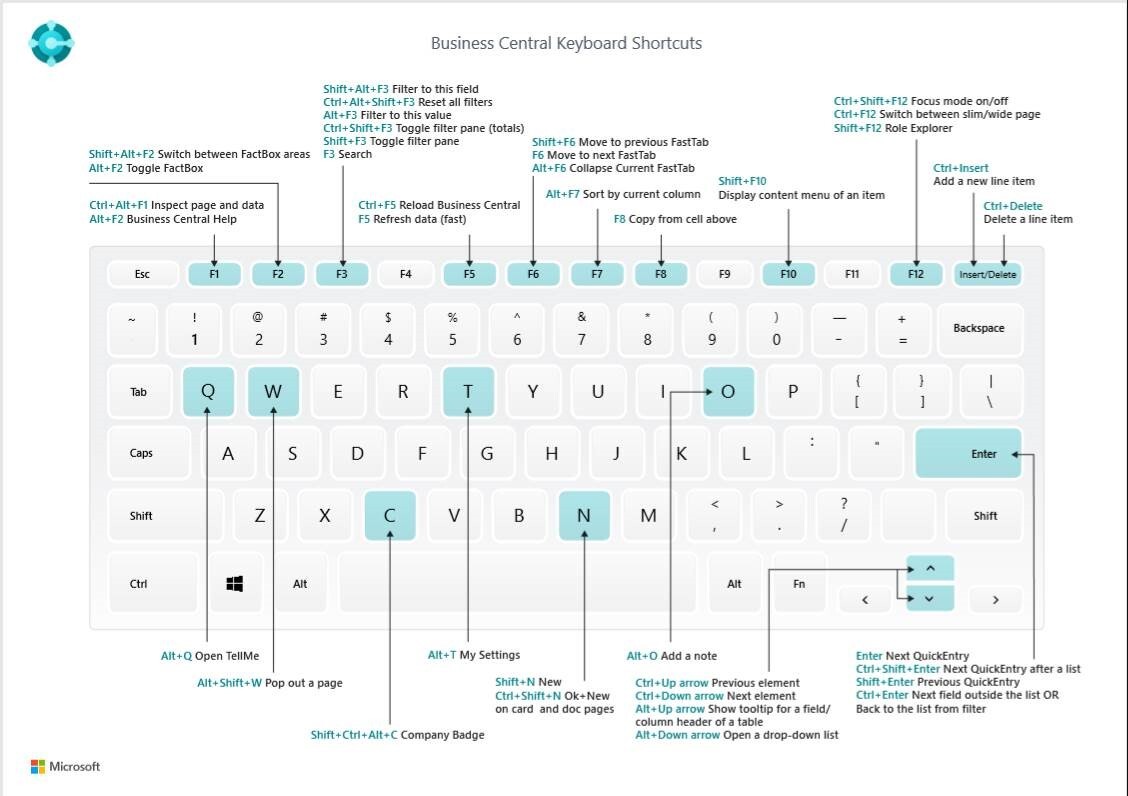
Want to learn more shortcuts?
These are just a few basic shortcuts to help you through the most common tasks but there are many more! Go get your printable Business Central shortcuts cheat sheet, and check out Microsoft’s overview of keyboard shortcuts in Business Central for a full list. If the full list is a little overwhelming (there are indeed a lot of shortcuts), we recommend this quick reference page for PC users.
If you have other questions about using Business Central to improve efficiency in your daily operations and drive long-term growth for your organization, contact Western Computer today to speak with a Dynamics expert.