



In this series of bi-monthly blogs, Western Computer shares our expertise with tips and tricks to help users work more efficiently in Microsoft Dynamics 365 Business Central. Based on our more than 30 years in business—with 1,250+ solution implementations, including more than 350 in the cloud—we share the expertise we have accumulated to enable users to work as proficiently as possible. You can also subscribe to these blogs in our LinkedIn newsletter.
Business Central has a lot to offer when it comes to tricks to help you work more efficiently. You know some of them, and you’re pretty sure there are more out there—but you’re not sure where to find them.
This blog is here to help!
As part of my role as a Business Application Consultant and Solution Architect for almost 20 years, I have trained many customers on how to run Dynamics applications. When I present tips, I will often hear, “Oh my gosh, we didn't know that was there!”
There are so many processes in Business Central that often the little things get missed. To help your accounting team discover a few tricks, here are some of my favorite things in Business Central when managing customer and vendor records.
Credit Management
The
Here’s a screenshot of
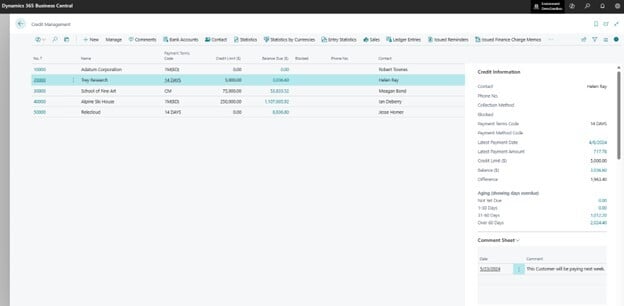
With the
Duplicate Customer or Vendor Cards
Oftentimes, accounting realizes that a customer or a vendor has more than one card. Perhaps there’s one for
With Business Central, you can run a process to merge the duplicate cards. The system will identify conflicting information so you can reconcile multiple cards and make sure the new merged card has all accurate information. Once you finish reconciling, Business Central moves all the transaction activity for that customer or vendor into the merged card.
Here’s a view of a Customer Card:
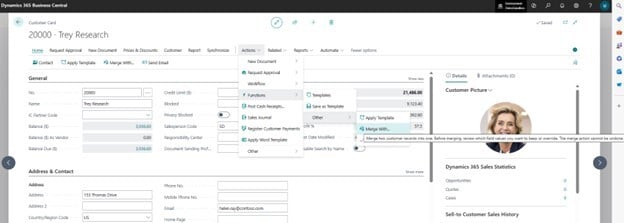
For this feature, users need the
After doing this, the
Net Balance of Customers Who Are Also Vendors
A company you do business with might be both a customer and a vendor. Business Central will tell you what the net balance is on paid and unpaid invoices between your company and the customer/vendor. This enables you to determine the net dollar value of the relationship. You can also avoid making unnecessary payments or receipts and save on transaction fees by consolidating the customer and vendor balances.
Linking the Customer and Vendor cards happens through the Contact Card. Normally both the Customer card and the Vendor card will create a corresponding Contact Card; however, to link these two, one of the Contact Cards must be deleted.
After deleting one of the Contact Cards, use the
function to link the Customer and Vendor cards. You will then be able to see the
Below is a sample view of a
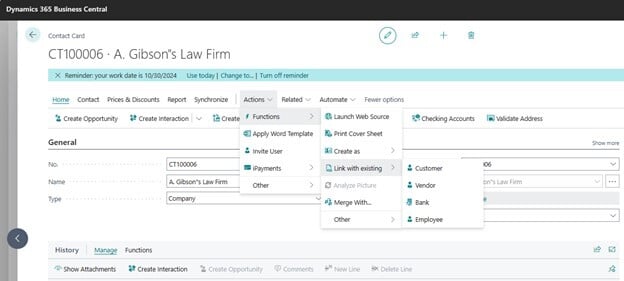
On the
Multiple Posting Groups for Customers and Vendors
When posting a customer or vendor transaction, do you need the option to hit a different AR or AP account in the GL?
Now you can!
Allowing alternate Customer Posting Groups or Vendor Posting Groups helps a user control these accounts. You can allow users to select posting groups other than the default groups when they're working with sales documents, purchase documents, and journals.
For the setup, go to the
On the
Here is a screenshot of
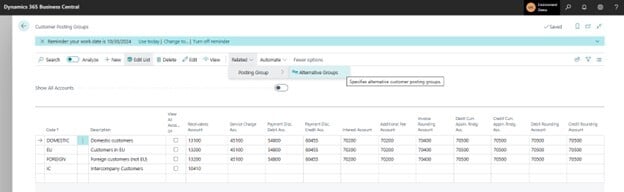
After you set this up, you can choose from the allowed posting groups and change the customer or vendor posting group when posting sales or purchase documents and journals. The alternate customer or vendor posting groups are copied to posted documents and journals. Payable and receivable entries are posted to the general ledger accounts specified for the alternates.
To Learn More
Look for more of Telka’s favorite things in Business Central in an upcoming Western Computer blog. We offer deep expertise across the Microsoft technology stack, particularly in Dynamics 365 solutions. Our thought leaders can help you ensure your critical ERP application meets your business needs for today and beyond.
And for more information on how to use these Business Central tips, or for help in designing, deploying and supporting Microsoft Dynamics 365 solutions, contact Western Computer today.
.jpg)